 Workforce Identity
 Endpoint Management
 Endpoint Detection & Response
 Vulnerability Management
 Compliance Automation
 Trust Center



.png?width=740&height=416&name=Auto%20Apps%20(resizedv2).png)
A guide to how Automated Device Enrollment works, where it stops, and how to close the window between enrolled and ready.
Automated Device Enrollment (ADE) was designed to solve the first-touch problem: IT should never have to physically handle a device to put it under management. A device powers on, contacts Apple's servers, and arrives in your mobile device management (MDM) system without imaging, manual configuration, or a staging room. For fleet management at scale, ADE changed what was operationally possible.
But ADE solves the enrollment problem, not the configuration problem. Those are different things, and the gap between them is where most IT teams spend time they didn't plan to spend.
What ADE actually does
When a device goes through ADE, it contacts Apple's servers during Setup Assistant and gets directed to your MDM. At that point, the device is enrolled — it's in your console, it has a management profile, and your MDM can communicate with it.
What it doesn't have yet: your apps, your Wi-Fi credentials, your certificates, your compliance policies, your security restrictions. Those push from your MDM after enrollment, on whatever schedule the next check-in happens to land. Enrollment is the handshake. Configuration is everything that follows.
Under standard MDM, the handshake and the configuration are asynchronous. The device is enrolled and the user gets it. Configurations catch up, usually quickly, sometimes not. The window between enrolled and configured with critical Library Items installed is IT's to manage.
.png?width=740&height=494&name=image%20(10).png)
Why the window matters
For most devices in most environments, the window is short enough that it doesn't cause problems. MDM check-ins are frequent, configurations push fast, and by the time the user has navigated through Setup Assistant, enough has arrived to make the device functional.
The window becomes a problem at the edges. A device that reaches a user before its certificate chain has pushed can't authenticate to your network. A device missing its security restrictions is briefly out of compliance. A device that gets through Setup Assistant without FileVault enabled started unencrypted. These aren't common failures, but when they happen, they're invisible unless you're watching for them.
The deeper issue is that MDM cannot tell you with certainty whether a configuration arrived before the user touched the device. Enrolled is a binary state. Configured is not.
What Customize Setup Assistant with ADE changes
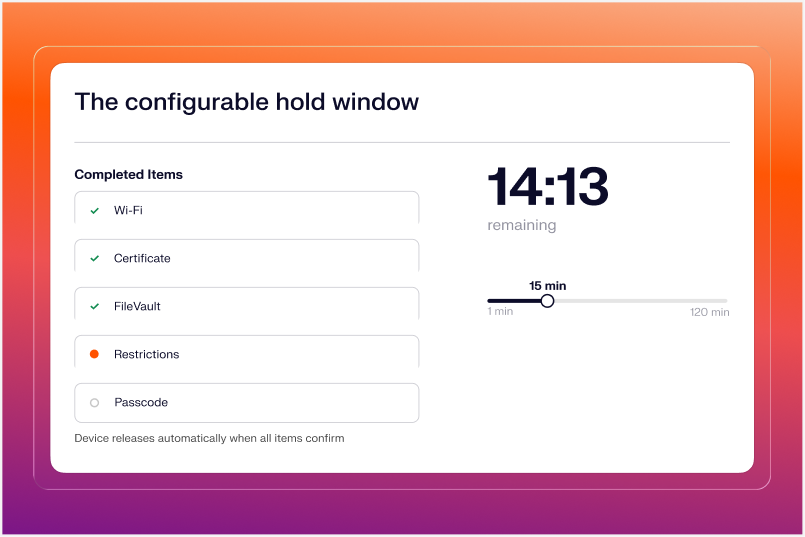
The ADE Library Item now holds the device in Setup Assistant until critical configuration is complete. Instead of pushing configurations and waiting for asynchronous check-ins, Iru runs selected Library Items in sequence with a confirmation between each step. The device releases only when every item on the list is done.
To configure this, open the ADE Library Item in Iru, enable "Install Library Items during Setup Assistant," and select which Library Items run during enrollment. Iru holds the device at the Configuring screen until every item on your list confirms installed, then releases it. The user's first interaction with the device happens after your configurations are in place.
The default hold window is 15 minutes, configurable from 1 to 120. The feature works across every ADE-enrolled Apple platform: Mac, iPhone, iPad, Apple Vision Pro, and Apple TV.
Agent-backed execution
The hold window is only as reliable as what can run inside it. Standard MDM sends a configuration payload and waits for a response. That approach works for profiles and restrictions, but reaches its limit for anything requiring active execution: a package with a pre-install dependency, a printer, a custom script.
During Setup Assistant, Iru installs the Iru Agent. Pre-install and post-install scripts execute. Library Item installations proceed with the same robustness as any standard Iru deployment, including items that require scripts.
At launch, this option supports a subset of Library Items. The device exits Setup Assistant with the exact configurations you need in place.
What belongs in the Setup Assistant window
The hold window is for configurations that have to be in place before the device is useful. Start with Wi-Fi credentials, since nothing else works without them. Add certificates that anchor device trust, then security restrictions and compliance-required policies.
Keep the list short. The hold window is a staging environment, not a full deployment pipeline. Loading every Library Item in your Blueprint inflates hold time and raises the risk that a stalled item drags the window to timeout. Five to ten critical items are the right scope.
Everything else belongs in Liftoff, where users can see what's still installing and IT gets confirmation without manual follow-up. Items that ran during Setup Assistant complete before Liftoff runs and never appear in its queue.
.png?width=740&height=494&name=image%20(9).png)
Why some configurations are always on
Some configurations like Restrictions, Passcode, Migration Assistant, and FileVault run during every Setup Assistant regardless of what you've selected. They cannot be deselected.
The reason is historical. This mechanism was originally built for education, where students found ways to bypass device restrictions during Setup Assistant before security configurations had a chance to apply. Making these items mandatory closed that window permanently. The same logic applies in any fleet: a device that passes through Setup Assistant without an active Passcode policy missed it. A disk that gets through without FileVault started unencrypted. These items are non-negotiable because the alternative is a guaranteed gap.
Passcode carries an additional implication for macOS. Any local user accounts created during Setup Assistant inherit the device's passcode policy. Without an active policy, accounts created before the device reaches your management layer are exempt from it entirely.
The broader direction
Closing the gap between enrolled and configured is part of a longer arc in Apple device management. As Platform SSO in macOS Tahoe extends enrollment further, the identity layer can complete during setup rather than arriving as a post-login prompt. A held Configuring screen, confirmed Library Item completion, and agent-backed execution are the foundation that makes a fully configured, identity-bound device from first login achievable.
Get started
Customize Setup Assistant with ADE is available now in Iru Endpoint Management. Open the ADE Library Item, enable "Install Library Items during Setup Assistant," and select the Library Items to run during enrollment.
For more information, see our product documentation.
See it in action. Want to see how Iru closes the gap between enrolled and configured? Book a demo and we'll walk you through Customize Setup Assistant with ADE in your environment.