
 Workforce Identity
 Endpoint Management
 Endpoint Detection & Response
 Vulnerability Management
 Compliance Automation
 Trust Center



Last year, Kandji introduced Passport, which makes the login process easier for end users by letting them sign in to their local device accounts with the same single sign-on credentials they use with their organizations' identity providers (IdPs).
In addition to making life easier for users, Passport also improves security for the organization as a whole: By syncing local and IdP credentials, IT teams can be sure they all meet the same safety standards.
We’ve now made Passport even more secure, by adding support for multifactor authentication (MFA). This enables admins to enforce login flows that leverage the same MFA factors already configured for their users' IdP accounts.
Those flows can use one-time passcodes (delivered via SMS, email, or an MFA app), push notifications to an app, or security questions. Passport’s MFA support works with Okta, OneLogin, and Azure AD as IdPs.
It’s an ideal solution for Apple IT teams that want to provide a consistent login experience for their end users or those who want to apply multifactor authentication at as many touch points as possible.
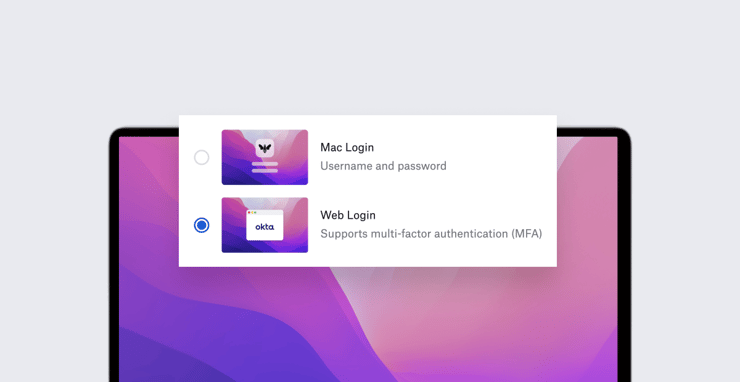
In practice, admins will configure MFA through an updated Passport library item. They can choose between the existing Mac login experience or a new Web Login option, which enables MFA support.
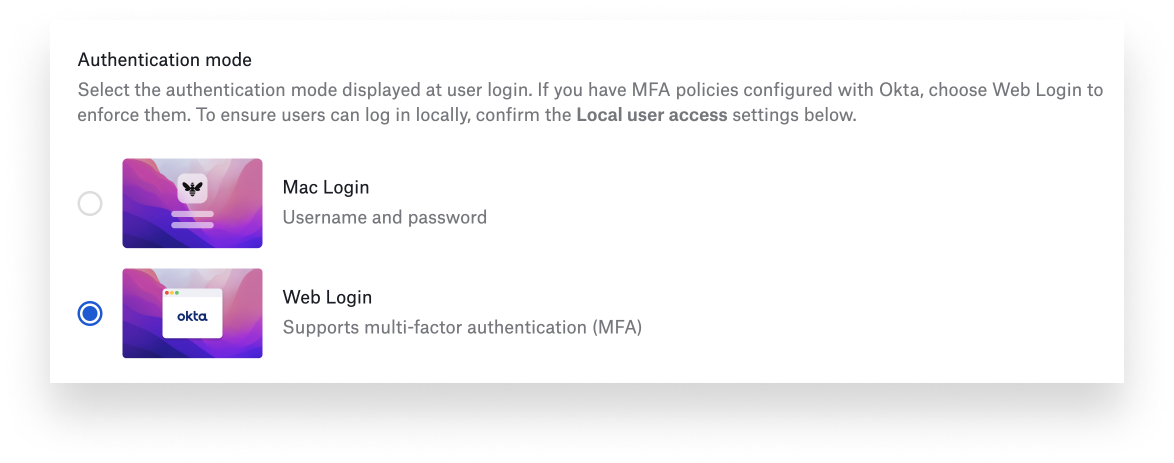 Once configured by the admin, users will go through the multifactor authentication process when they log in to their devices, if MFA is part of the IdP’s browser login flow. Admins can choose to make offline login without MFA an option. In that case, if the device isn’t connected to the Internet for some reason, the user will get the standard local login window.
For more details on how to implement multifactor authentication in Passport, see our support article. And for a better look at how it works, check out our video walkthrough: