 Workforce Identity
 Endpoint Management
 Endpoint Detection & Response
 Vulnerability Management
 Compliance Automation
 Trust Center



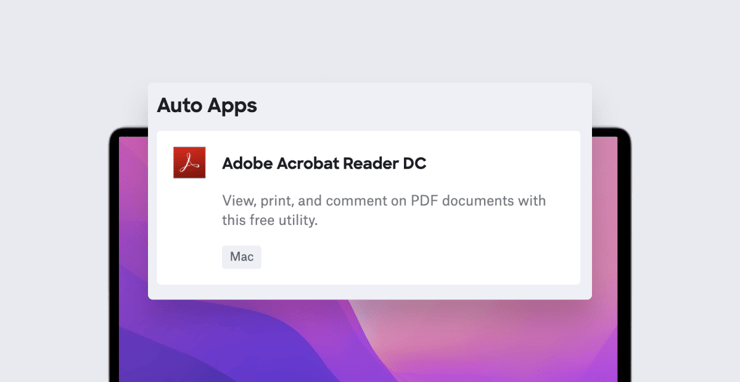
We’ve updated Auto Apps to give admins greater control over the notifications those apps generate for users.
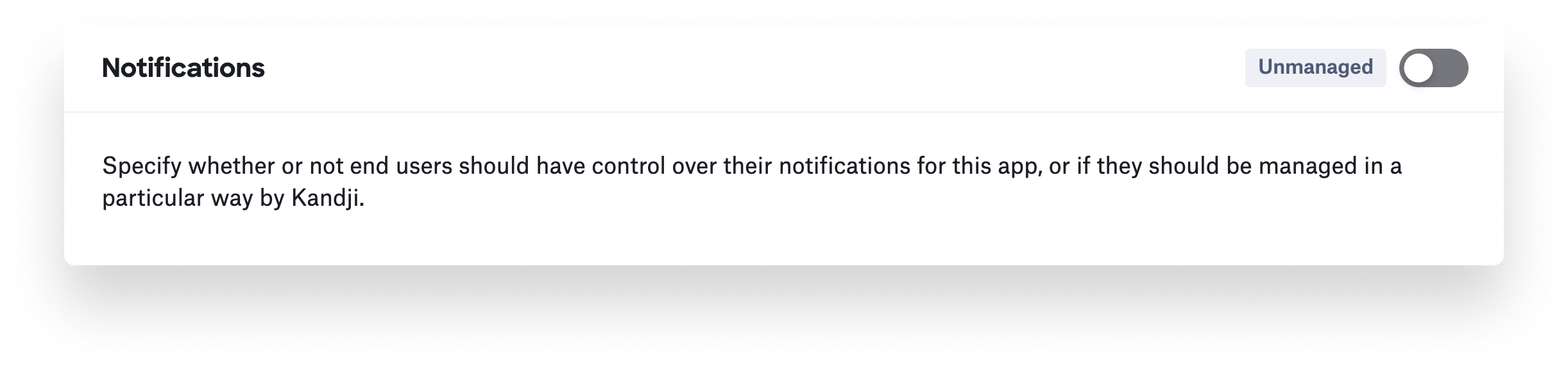
In the configuration module for a given Auto App, you’ll see a new Notifications section. When the toggle for that section is set to Unmanaged, users can control notifications for that app on their own computers as they wish, using the usual tools in macOS.
 If that toggle is switched to Managed, admins have two options: Allow notifications means notifications will always be on for that application. Disallow notifications means they will always be off.
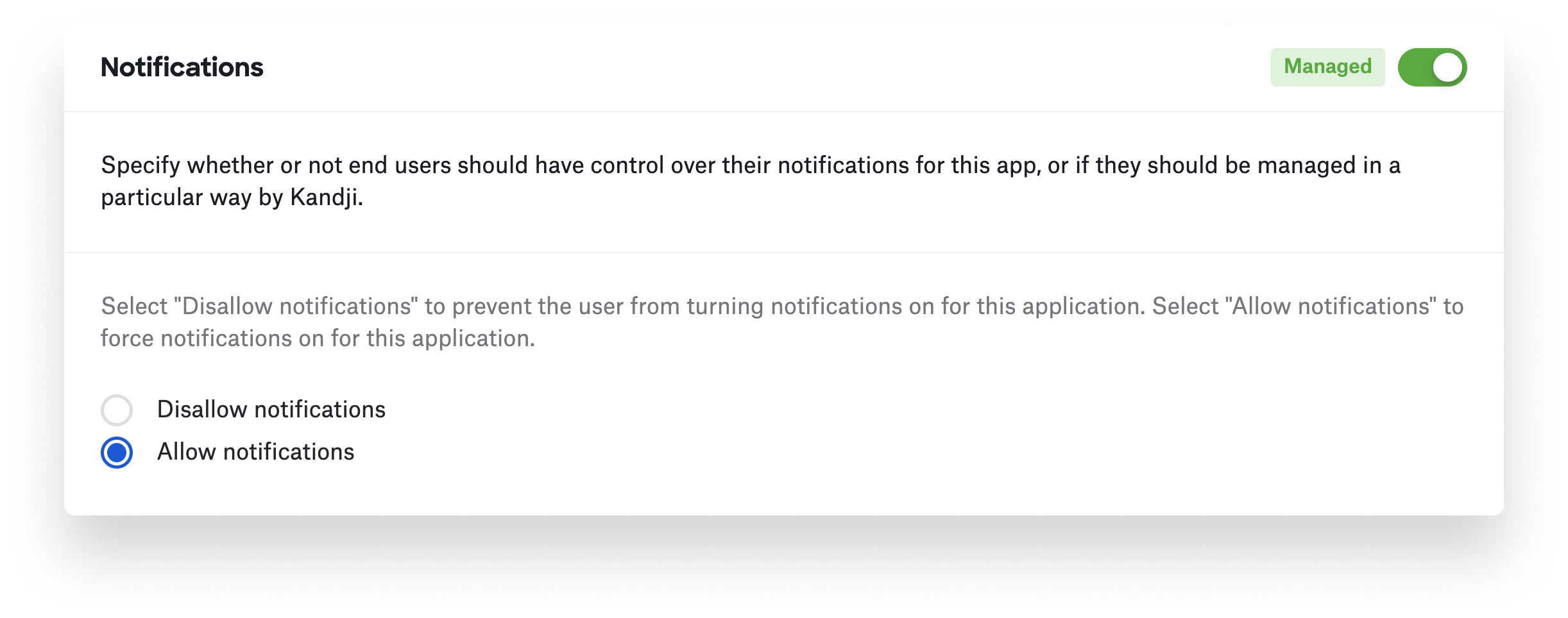 In other words, you can first decide whether or not users should be able to control an app’s notifications; if you opt for “not,” it then lets you control the notifications settings themselves.
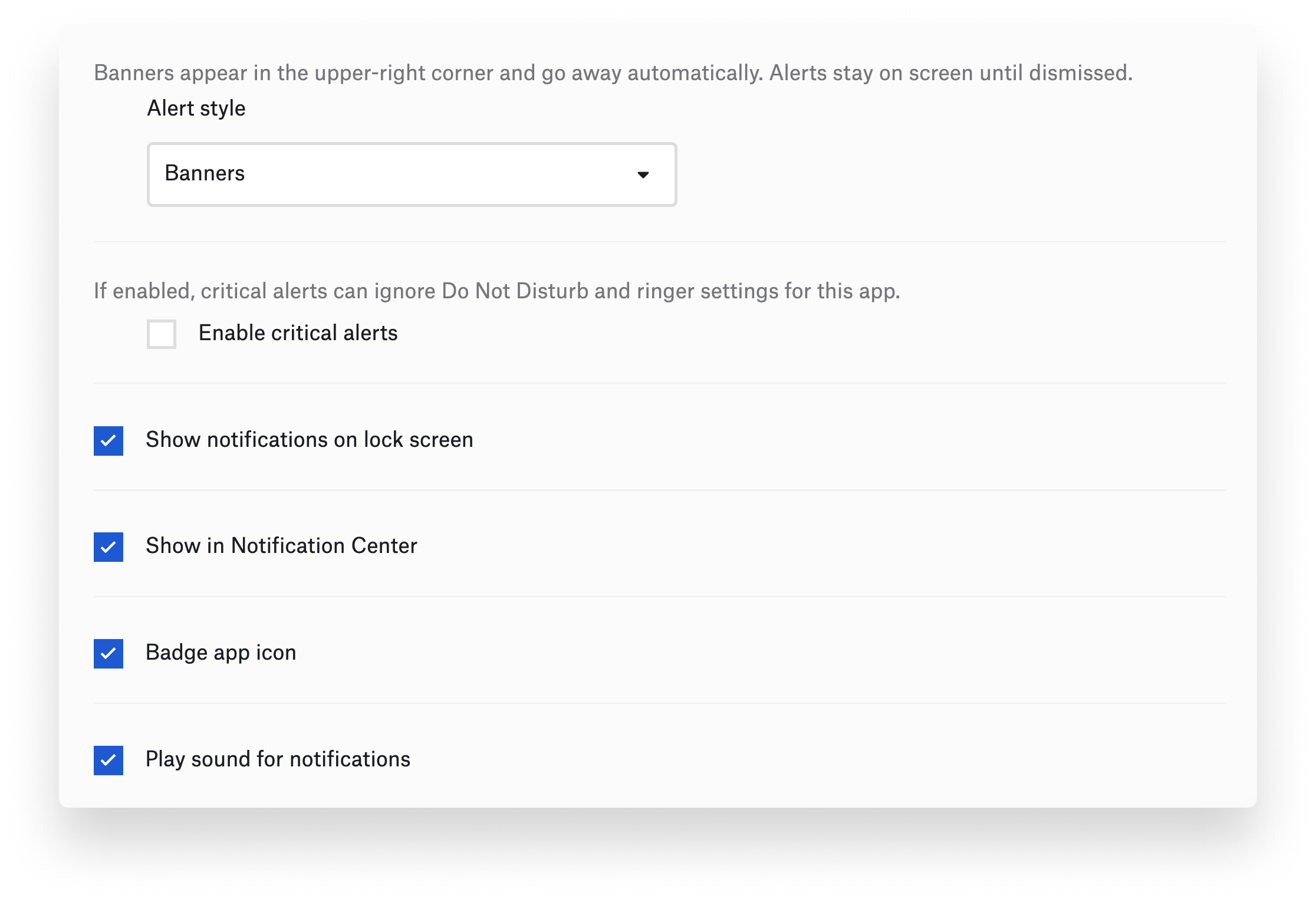 If you decide on the latter, the module offers an assortment of controls: You can specify whether notifications appear as banners or alerts, on the lock screen, or in Notification Center. You can specify whether critical alerts should ignore the app's Do Not Disturb and ringer settings, opt to have a badge appear on the app icon, and turn sounds on or off.
The default when you add a new Auto App is to set notifications to Unmanaged, allowing end-users to control their own notifications for the app. Previously deployed Auto Apps are set to Managed; you’ll need to edit and save that Library item in order to change notifications behavior.
For more details, please see our support article.