
 Workforce Identity
 Endpoint Management
 Endpoint Detection & Response
 Vulnerability Management
 Compliance Automation
 Trust Center



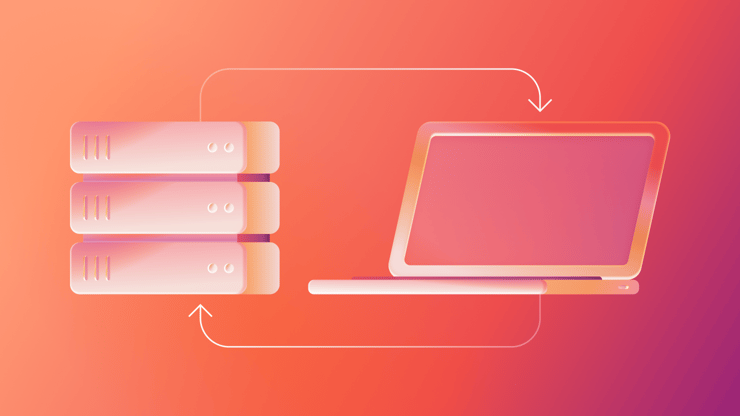

Mac mobile device management (MDM) is a framework that lets IT administrators remotely set up, manage, and secure Apple devices from a single place. When a device is enrolled, it receives a profile that builds a channel between the device and the MDM server. When IT applies a policy or issues a command in the MDM console, the software sends a notification to the device, which retrieves the information and applies it locally. Businesses use Mac MDM to automate device onboarding, enforce company security policies, deploy apps and updates, and maintain compliance, all without needing to physically engage with the device.
Imagine starting work on a Monday at a fully remote company that’s growing rapidly. The organization has just onboarded 20 new hires and sent a new MacBook to each of their home addresses. Now imagine the work required if someone had to physically set up each machine, installing the right apps and setting the right security parameters. This is the reality for some of the 54,740 businesses currently using MacOS.
And that’s what it can look like if you don’t find the right mobile device management solution. But when you do find the best Mac MDM platform, your IT team gets a single place to enroll, configure, secure, and monitor every Apple device in your fleet, regardless of location. And updates simply happen on a schedule, keeping things running smoothly all the time.
The good news is that there are several ways a Mac MDM can streamline your IT team’s work. This article dives into what a Mac MDM is, how it works, and exactly how it can help your team. Let’s jump in.
What is a Mac MDM?
A Mac MDM, or mobile device management, is a protocol allowing IT administrators to configure, manage, and secure Apple devices remotely. On macOS, MDM works through Apple’s built-in MDM framework, which provides a direct channel to push commands and policies without physical contact. Apple defines the actions allowed on devices, and all communication travels over secure HTTPS connections.
Understanding Mac MDM is important for IT administrators and security teams who manage Mac-forward organizations, especially those where MDM is the foundation of endpoint security and compliance. The purpose of MDM is to improve management and control of the device fleet, especially in cases where devices are not consistently on-premises.
How does Mac MDM work?
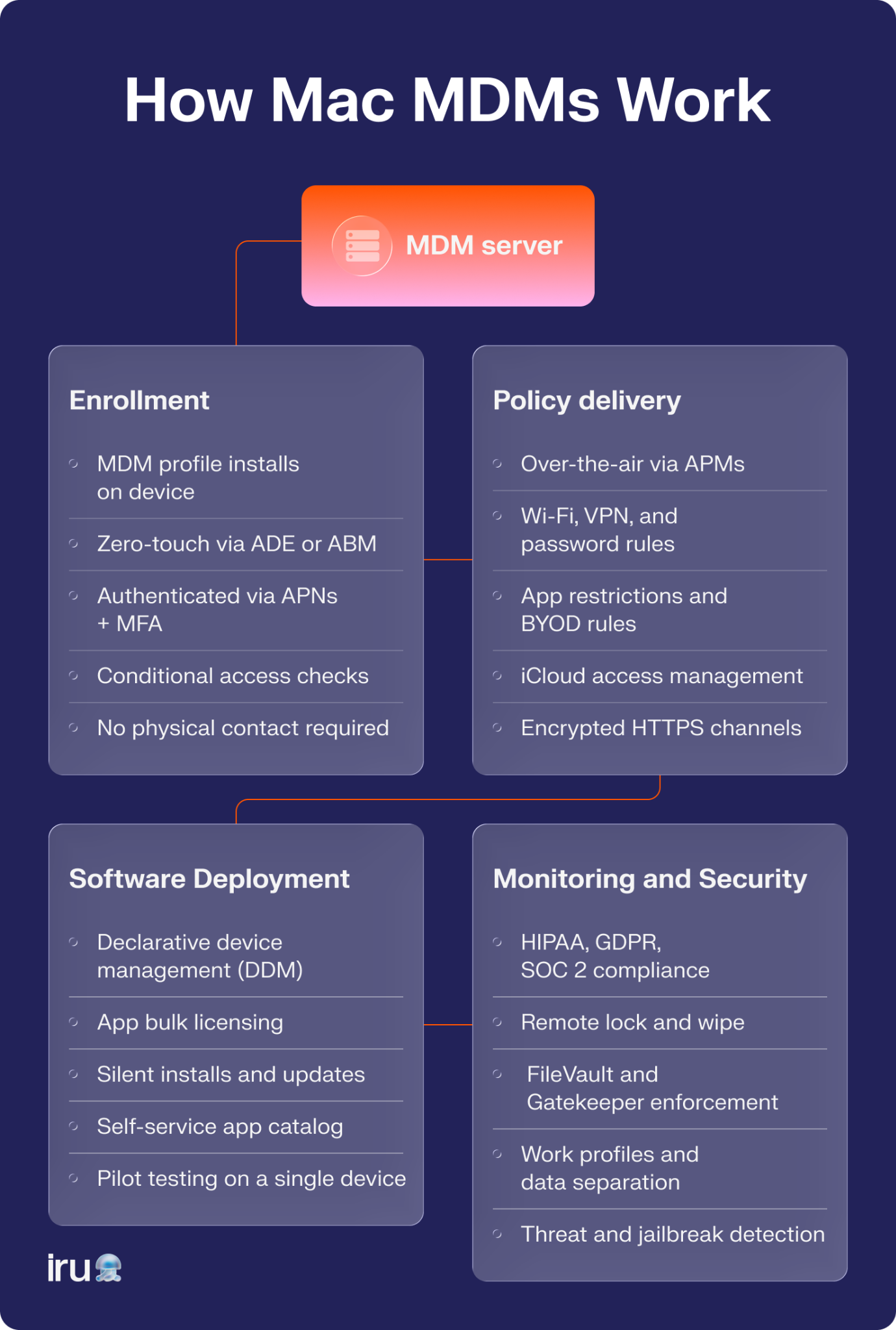
A Mac MDM works through a series of steps, including:
- A user or administrator installs a Mac profile on a device, such as a MacBook.
- The profile connects to the MacBook on the MDM server.
- The server sends commands and policies over HTTPS.
- The device applies those configurations locally.
Below, we break down each part of this process in more detail.
1. Device enrollment and authentication
To connect to the MDM, a device must be “enrolled,” which means an MDM profile has been installed on the device. Some enrollments may be manual and initiated by the user, but most use automated or zero-touch enrollment. In these cases, a device is automatically configured and enrolled when it’s first turned on, with no manual setup required. Here are a few common enrollment methods:
- Company portal:A user downloads the company portal app, signs in with their credentials for the organization, approves the MDM portal, and the device starts receiving policies.
- QR code:A user scans a QR code directing them to a URL at which they can enroll, which then triggers a profile download and installation.
- Text links:A user follows a link sent by IT, and upon clicking it, the MDM profile downloads and installs.
- Apple Business Manager (ABM):ABM works by connecting Apple’s activation servers to your MDM server. Then, when you purchase a device through Apple or an authorized reseller, the device appears in your ABM account, and you can assign it to the MDM server for automatic enrollment.
- Automated Device Enrollment (ADE):ADE links devices to your organization in Apple Business Manager before they reach employees. When a user turns on the device for the first time and connects to the internet, MDM enrollment begins.
Depending on the platform, users can also self-enroll on their Mac’s Device Management
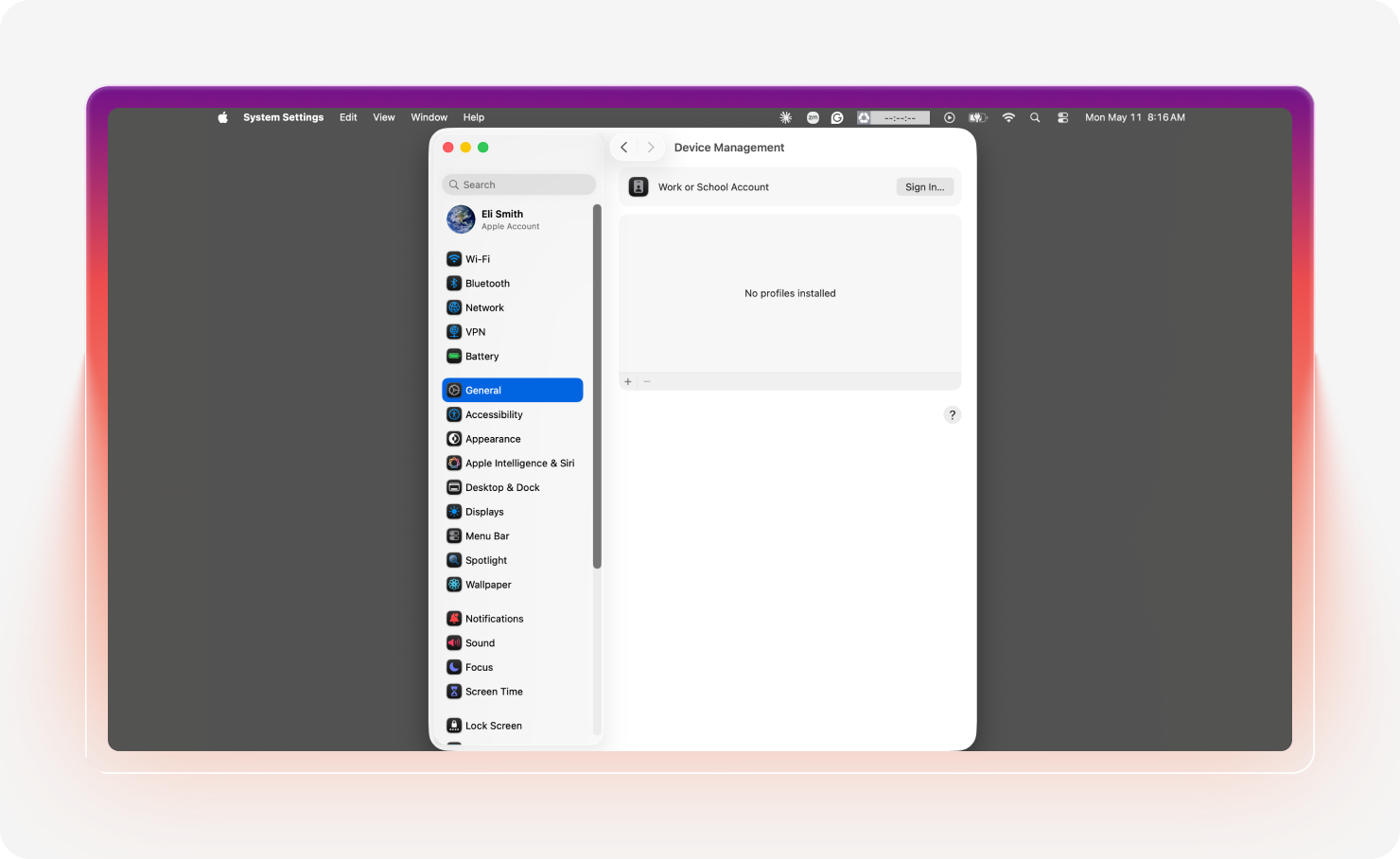
Authentication is the process of exchanging certificates. Apple Push Notification Service (APNs) serves as a secure channel between the MDM server and the device, verifying devices and users. This can also happen through directory credentials such as LDAP or Active Directory, one-time passwords (OTPs), or multi-factor authentication (MFA), which allow users to authenticate themselves and confirm their identity.
Finally, conditional access helps verify a device’s compliance. This ensures that only those devices that meet security standards, like encryption status, VPN configuration, and network connectivity compliance, can access resources.
2. Policy delivery and device management
With an MDM in place, policy delivery and Mac device management work together in a single workflow. When a device is enrolled, it becomes a managed endpoint, which IT can configure, monitor, update, and correct from anywhere.
The modern approach for policy delivery is over-the-air (OTA) management, which uses APN. An encrypted channel runs in the background on every enrolled device, sending a signal when an administrator makes a change in the MDM console. The device receives a prompt to check in with the server and pull in the configurations, applying them locally and reporting back, all often without the user noticing.
Before OTA became common, device management relied on locally installed agents and on-premises servers. Software had to be deployed on each device, then maintained and troubleshot separately. While it worked, it was time-consuming and not scalable, especially across remote or distributed teams.
The information pushed through OTA channels is called policies, and they’re configuration information that defines how a device should behave. Once they’re delivered, they’re enforced on the operating system. Policies include:
- Wi-fi configurations:MDMs can configure Wi-Fi SSIDs, security settings, and passwords so users can connect automatically to networks without needing to manually enter credentials.
- Password requirements: Policies can enforce password requirements, such as length, complexity, and expiration, to keep devices secure.
- App installations: The MDM server can install and update apps even if the App Store is hidden. Managed apps are installed and controlled silently by IT administrators, while unmanaged apps are those personally installed outside the scope of IT.
- App restrictions: IT can also restrict installation of certain apps, particularly on company-owned devices, or manage an employee’s iCloud access. It’s less common to restrict app downloads on employee-owned devices, as bring-your-own-device (BYOD) policies allow separation between work and personal data.
- VPN configurations:MDMs can push VPN profiles so devices can automatically connect to company networks.
Fountain Lake School District migrated its entire fleet to Iru in under a week. Previously, updates weren’t reaching devices reliably, compliance took months, and updates frequently required physical work on the device. Switching to Iru let Fountain Lake benefit from automated policy delivery, cutting time spent by 50% while increasing their security posture.
.png?width=1280&height=720&name=How%20to%20deploy%20printers%20in%20Iru%20(1).png)
3. Software deployment and updates
Currently, Mac handles independent update management via declarative device management (DDM). This allows a device to apply settings and report the status back to the device management service.
Additionally, Apps and Books allows you to purchase apps in bulk and distribute them across devices without requiring individual Apple IDs. This is particularly useful when you’re dealing with shared devices or kiosk deployments where users don’t sign in with a personal account.
When it comes to internally developed or proprietary apps, these are deployed via package files pushed through the MDM console. Standard software, like Slack or Chrome, can be deployed through methods like Apps and Books or by packaging the installer and pushing it to managed devices. IT teams can also use scripting to extend what native MDM channels allow.
Many MDM platforms also offer self-service portals, which serve as app catalogs where users can install preapproved software on their own, no IT intervention required.
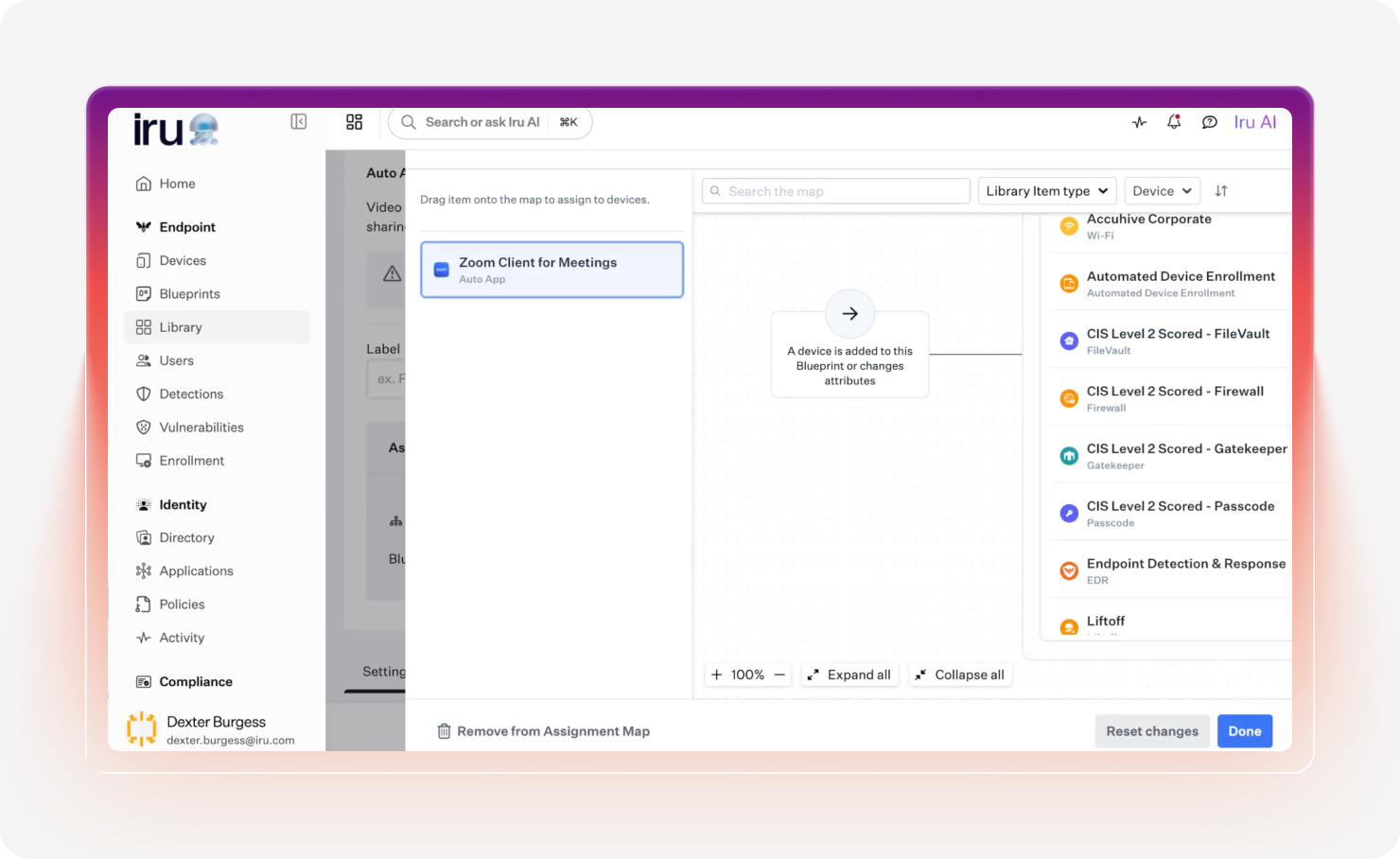
IT teams can test updates before deploying across the broader fleet, often starting with a pilot group to minimize widespread disruption. DDM also offers improved options for enforcing upgrades or updates; users receive information in their settings when an update is requested or enforced, with more frequent notifications appearing the closer it gets to the enforcement date. If the user doesn’t install the update on time, macOS will handle it.
4. Monitoring and security
MDM offers IT teams a continuous, real-time view of every device’s security throughout their entire lifecycle. This monitoring helps close the gap between enforcing policies and ensuring compliance.
Here are a few common monitoring and security features:
- Compliance monitoring: Mac MDM enforces regulations like HIPAA, GDPR, and SOC-2. Compliance logs make audits quicker and more reliable, and configurations map directly to multiple compliance standards.
- Work profiles: MDMs can segment data access based on roles and who needs the information, which keeps confidential corporate data separate from personal accounts and apps. This is especially beneficial in BYOD environments.
- Remote control: Admins can remotely troubleshoot devices, both via user authorization (attended access) or unattended admin access. They can also remotely lock devices to increase security or secure machines that are lost or stolen.
- Remote wipe and device removal: If an employee leaves the company or a device is out of compliance, MDM lets admins remotely wipe the device of all corporate data. This could be a full wipe for a managed device, or a selective wipe of corporate-managed data from a BYOD device.
- Threat protection: Detect jailbroken or overridden settings and secure devices against malware and installations from unverified sources to keep devices safe against threats.
Benefits of Mac MDM for businesses
Mac MDM can improve speed and security across multiple dimensions from the moment they’re turned on to the day they’re retired. Here are some of the main benefits:
- Faster onboarding (and offboarding): Zero-touch enrollment reduces setup time. At offboarding, remote wipe drastically reduces data exposure risk during termination of access.
- Security across devices: MDM enforces a baseline security posture regardless of location, which replaces inconsistent manual setups. Some of these protections include FileVault encryption management, Gatekeeper settings to block concerning applications, and System Integrity Protection (SIP) to prevent unauthorized modifications or access.
- Reduced IT workload: Automating OS updates, patches, and software deployment reduces repetitive tasks and mitigates human error.
- Distributed team support: IT can manage devices from a single console without needing physical access, which closes the security gap for remote workers. This also increases the efficiency of getting remote teams operational and ready to work.
- Compliance readiness: MDM generates device-level evidence for SOC 2, ISO 27001, and HIPAA.
When Trackunit’s IT team evaluated their fleet management, they found that their current MDM required manual work and heavy consultant support just to keep their devices patched and compliant. Once they migrated to Iru, they successfully automated app and OS updates, increased productivity with zero-touch enrollment, and eliminated the need for MDM consultants altogether.
Manage, control, and secure your Macs from one platform
Mac MDM is non-negotiable for any team managing more than a few Apple devices. Being able to enroll, configure, secure, and update an entire fleet without physical contact is a win for efficiency and stronger security across distributed teams. The right MDM platform lets your team scale instead of scrambling.
If you’re ready to spend less time chasing out-of-date devices and scrabbling for compliance evidence before an audit, request a demo to try out Iru. You’ll get robust endpoint security features, automated compliance tools, hours of time savings, and most importantly, peace of mind.