
 Workforce Identity
 Endpoint Management
 Endpoint Detection & Response
 Vulnerability Management
 Compliance Automation
 Trust Center



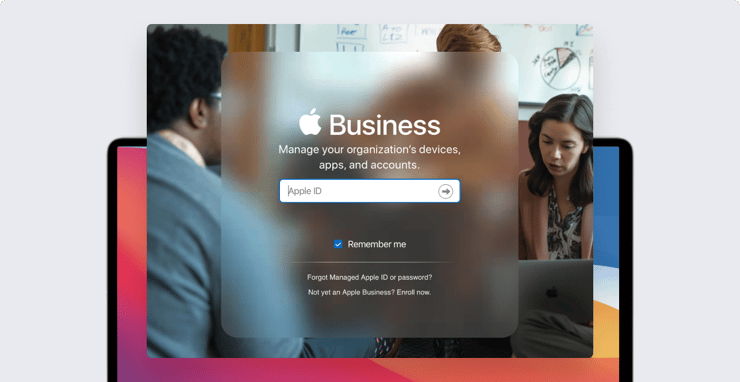
Apple Business Manager is absolutely essential for managing Apple devices in the enterprise. With it, you can enroll your company’s devices in your MDM solution, distribute apps, and create Managed Apple ID accounts that your organization retains ownership of. It’s the central component of zero-touch deployments, letting you drop-ship new Mac computers and iPhone and iPad devices to users and have those devices configure themselves the first time they boot.
For the most part, ABM is pretty straightforward to use. But we've got some tips and tricks that will help make it—and you—more effective. (Note that these ideas apply to Apple School Manager as well.)
- Use Safari on a Mac
- Trust the browser
- Use a Staff role account to set up APNs
- Make sure you have a second Administrator account
- Set up locations first
1) Use Safari on a Mac
Even though Apple supports Google Chrome, for best results when you’re dealing with ABM, just use Safari on macOS.
2) Trust the Browser
When you sign in to ABM on your Mac you have to provide your two-factor authentication code. You’ll be asked whether you want to trust this browser. Just say yes. Then you won’t have to go through the two-factor authentication process again on your Mac.
3) Use a Staff Role Account to Set up APNs
For every ABM account, there are roles that define what users of that account can do. There are three classes of roles: Administrator, Manager, and Staff. (There are, in turn, three types of Manager.)
As you might guess, Staff roles have limited privileges. But Staff users can do one important thing: create and renew the certificates for the Apple Push Notification service (APNs), the means through which Kandji and other MDM solutions communicate with managed devices. It actually makes sense to assign the job of managing APNs certificates to someone with a Staff role.
It’s not a trivial responsibility. APNs certificates expire every year, and you need to renew them before they do. If those certificates expire, your MDM system will break.
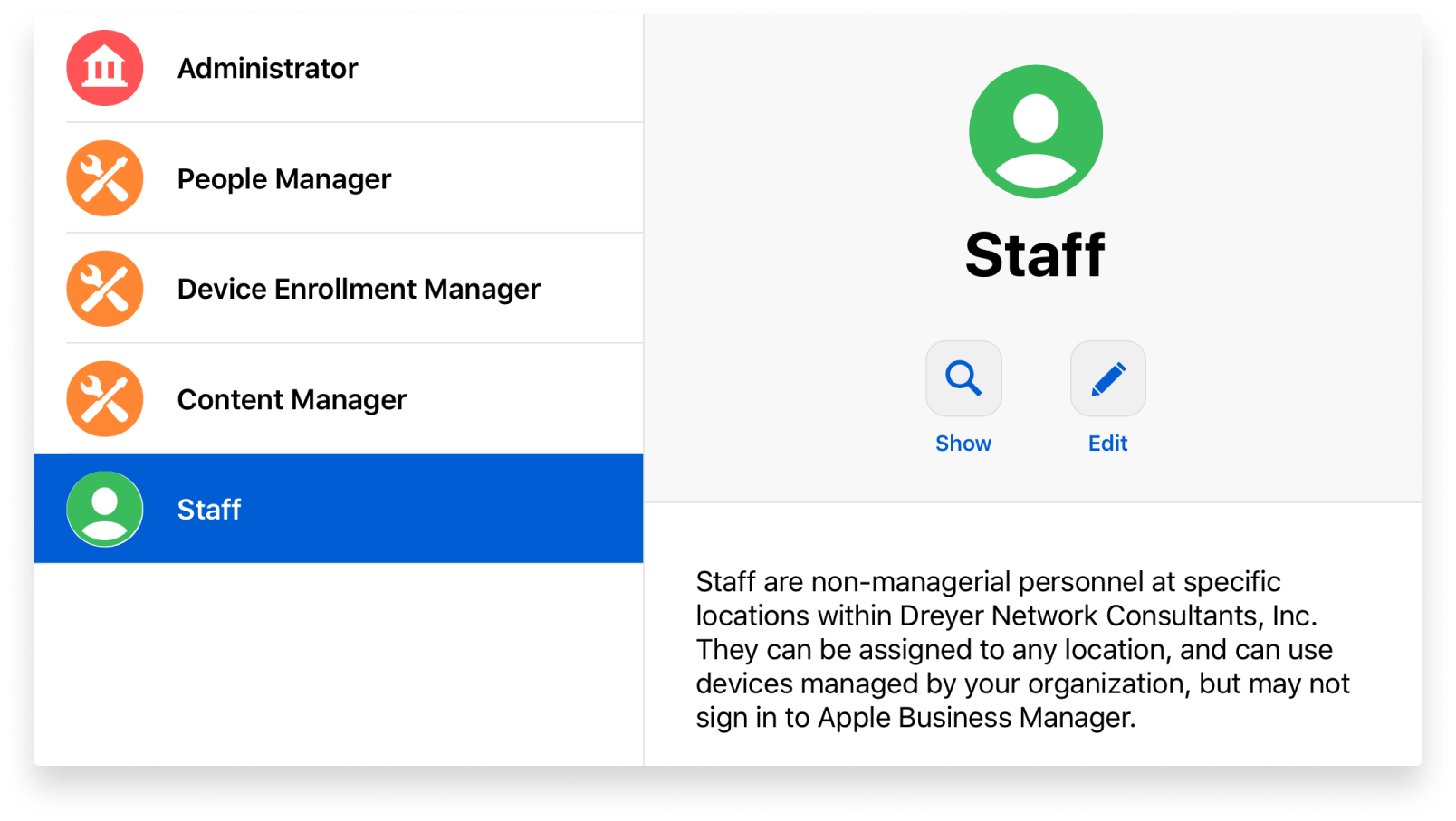 So why assign it to someone with a Staff role? For one thing, the principle of least privilege dictates that an account shouldn’t have more access than is required to perform its required tasks. The account that you use to update your APNs certificate doesn’t need to do anything else inside ABM (such as manage devices, locations, Apps & Books, or accounts). So it makes sense to assign it to a Staff role.
There’s also a more practical reason. You could create a more traditional “personal” Apple ID for the sole purpose of maintaining those certificates, then share those credentials among your IT staff. But that’s not very secure. In theory, anybody in the department who leaves could then still gain access to your APNs account. Assigning an account with the Staff role to manage your APNs means your organization always maintains control over it; you can use an account with the Administrator or People Manager role to change the password of an account with the Staff role.
Note: Organizations that use Apple School Manager can use the Instructor role instead of Staff for creating and maintaining APNs certificates.
4) Make a Second Administrator Account
As an Administrator in your organization’s ABM account, you should set up at least one other person with Administrator privileges. The reason: You want some redundancy when it comes to managing your MDM settings. If you have just one Administrator and you leave or forget your password, your organization won’t be able to make any changes to those settings.
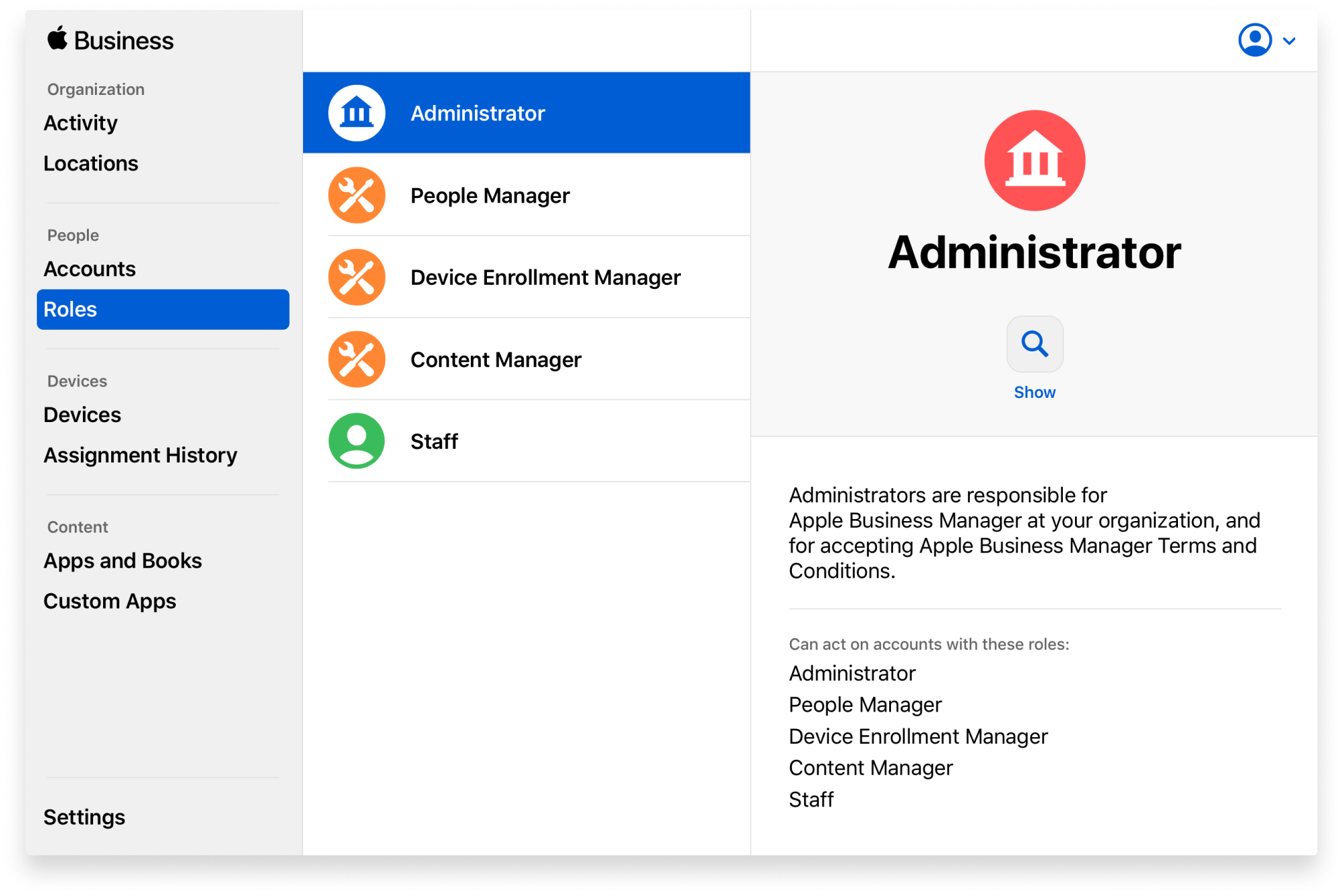
Just for the sake of redundancy, in case something should happen to one Administrator, it makes sense to have a backup with equal power.
5) Set up Locations First
In order to use an MDM solution like Kandji to purchase and distribute content for your organization (using Apps & Books), you must link your MDM solution to a location in ABM. That linking can take a little time, so it makes sense to set it up first.
When you first sign up for ABM, a location is created automatically. But you can use a location with only one MDM solution at a time. So if you’re already using your default location with your existing MDM solution, and you want to try out a different MDM solution, you’ll need a new location. Or if you use ABM to manage content in other offices and want to allow different people to manage content there, you’ll need to add a location for each administrative silo.
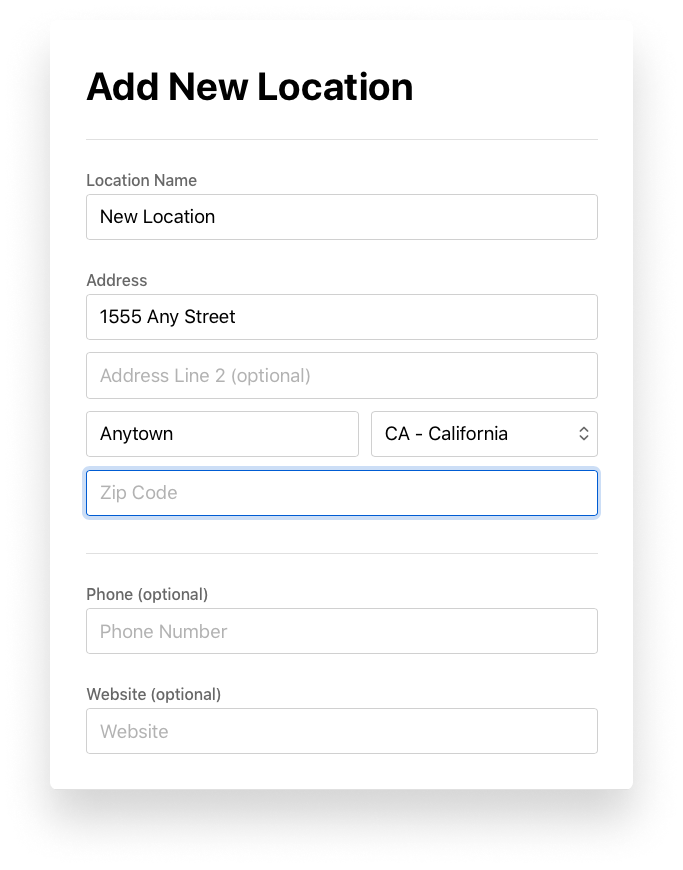
You can create a new location this way: Sign in to ABM with an Administrator role, select Locations, click Add (+), assign a new location name, complete the address fields, then click Save.
 The link between a location and an MDM solution is a token. After you create your new location, here's how you download its token: Sign in to ABM with an Administrator or Content Manager role, go to Settings > Apps and Books. On the right side of the page, scroll down to My Server Tokens. It might take a few minutes for your new location to appear. (You can always press Command-R to refresh the page.) Once your new location appears, click Download next to it. Then you can upload the token to your MDM server to establish the link.
About Kandji
With innovation and iteration at the core of everything we do, Kandji is constantly building solutions to give you more of what you need and improve upon features you already love. With Kandji, you can be confident that your Apple fleet is in safe and secure hands from deployment to retirement.