




What is zero-touch deployment? Zero-touch deployment is a process that automatically sets up a device with the apps, settings, and security policies your organization requires, with little or no manual IT work. It’s also called zero-touch provisioning or touchless deployment.
A new hire starts Monday in another city. Their laptop arrives on day one, but IT still needs to install apps, apply security settings, and prepare the device for work. That setup can leave your new employee waiting for hours or even days. With zero-touch deployment, the device configures itself during its initial setup, so your new hire can get to work sooner.
For IT teams, that means spending less time preparing each device by hand. The key is getting the process right, from choosing a deployment method to ensuring every device receives the correct configuration. In this guide, we’ll see how zero-touch deployment works, what it takes to implement it, and how it can simplify endpoint setup.
How zero-touch deployment works
Zero-touch deployment connects device registration, endpoint management, and automated setup in one process. Your IT team prepares the rules in advance, and each device follows those instructions when an employee turns it on.
Here’s how the process works from start to finish:
- Device registration: Your IT team registers company-owned devices with a deployment service, such as Apple Business (formerly Apple Business Manager). Registration links each device to your organization and routes it to the right management system during setup.
- MDM configuration: IT configures mobile device management (MDM) policies to define how devices should work. These policies specify the required settings, security controls, and apps for each group of employees.
- Direct shipping: Ship pre-registered devices straight to employees, including those working remotely, with the required setup ready to apply on first boot.
- First boot and auto enrollment: When an employee turns on a compatible device and connects to the internet, the device contacts the deployment service. The service directs the device to your endpoint management platform, which enrolls it according to the configured process.
- Device provisioning: After enrollment, the endpoint management platform applies the required settings and security policies and installs assigned apps. Once the setup finishes, the employee can sign in and start working with a device prepared for their role.
Zero-touch deployment across different platforms
Zero-touch deployment uses built-in enrollment services to connect devices to your organization’s endpoint management platform. The available options depend on the operating system.
Apple uses Apple Business and Automated Device Enrollment (ADE) to assign company-owned devices to an MDM service. Windows uses Windows Autopilot, and Android supports Android zero-touch enrollment and Samsung Knox Mobile Enrollment.
Here are a few more details on each option:
| Enrollment program | How devices route to MDM | Notes | |
|---|---|---|---|
| Apple (Mac, iPhone, iPad) | Apple Business + Automated Device Enrollment | Devices are assigned to an MDM service through Apple Business | Supports automated enrollment and device configuration |
| Windows | Windows Autopilot | Registered hardware information links devices to their deployment profiles | Microsoft Entra ID manages user identity and access, while the chosen MDM service manages device configuration and policies |
| Android | Android zero-touch enrollment or Samsung Knox Mobile Enrollment | Devices retrieve their assigned enrollment configuration during initial setup | Useful for large deployments of company-owned Android devices |
Benefits of zero-touch deployment
Zero-touch deployment cuts the work involved in preparing devices and gives employees a smoother start. With the right endpoint management tools, your IT team gains better endpoint visibility and control while spending less time on routine setup.
Zero-touch deployment also offers:
- Remote and hybrid onboarding: Ship devices directly to employees, wherever they work, with the required setup already in place.
- Faster time to productivity: Get employees working sooner with automated zero-touch installation and app setup.
- Consistent and enforceable configuration: Apply the right settings and policies across devices to maintain consistency.
- Security applied from first boot: Enforce security policies during enrollment to protect devices from the start.
- Remote lock and wipe: Use your device management platform to lock a lost device or remotely erase its data, protecting company information.
- Fewer manual errors: Reduce mistakes caused by repetitive, hands-on configuration.
Iru brings identity and device management together, giving your team the visibility to check device compliance and the controls to keep devices secure. Iru’s features, like passwordless access, help employees connect to the apps they need with less friction.
How to implement zero-touch deployment
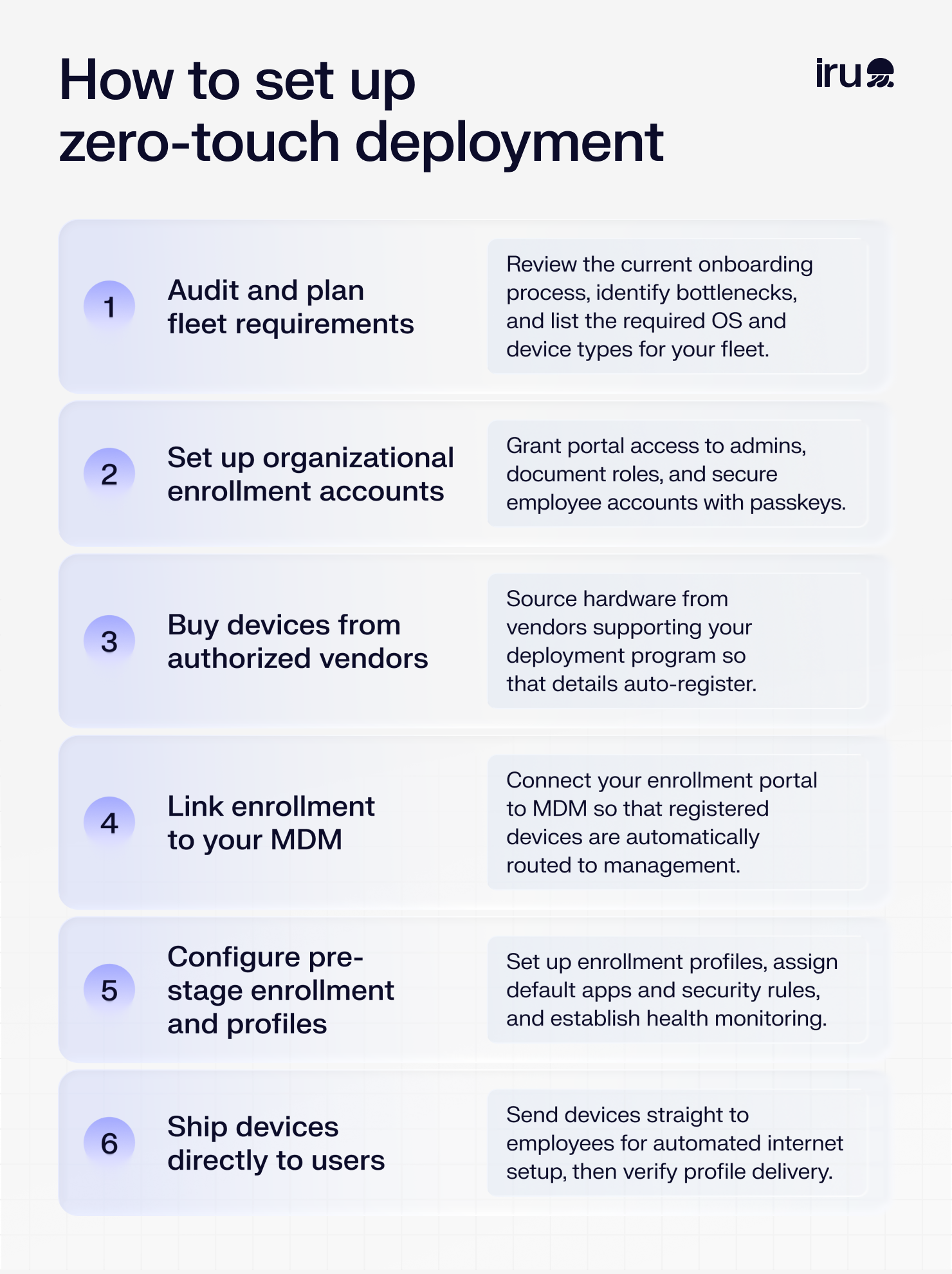
A successful zero-touch deployment starts with a clear plan. You need the right enrollment services, an endpoint management platform, and device configurations that match each employee’s role. Follow these six steps to build a process that works today and can grow with your organization.
1. Audit and plan fleet requirements
Start by reviewing your current onboarding process. Identify where manual setup slows things down, then list the operating systems and device types your organization uses.
Choose an endpoint management tool, such as Iru, that fits your current fleet. Iru supports Apple, Windows, and Android devices, making it a flexible option for mixed-device environments. Even if your team uses only one operating system today, support for other platforms gives you room to expand.
2. Set up organizational enrollment accounts
Give the right IT administrators access to your enrollment portals, and document who manages device assignments and enrollment settings. Limit access to authorized team members so changes to your deployment process remain under control.
You’ll also need to secure the accounts employees use to access work apps. Iru Workforce Identity uses hardware-backed passkeys for passwordless sign-in and checks device security at login to protect access against phishing.
3. Buy devices from authorized vendors
Purchase devices from manufacturers or authorized resellers that support your chosen enrollment program. Depending on the platform and vendor, device details can be added to your organization’s enrollment portal automatically.
Confirm that each purchase supports the enrollment method you plan to use. This step prevents devices from arriving without the registration needed for automated setup.
4. Link enrollment to your MDM
Connect your device enrollment portal to your MDM platform. The connection allows the enrollment service to direct registered devices to the correct management system.
Follow the platform’s instructions to authorize the connection and keep its credentials secure. For Mac MDM, Apple Business connects eligible devices to your chosen management service through Automated Device Enrollment.
5. Configure pre-stage enrollment and profiles
Prepare an MDM policy that defines the settings and access controls each device needs. Assign apps, Wi-Fi settings, and security requirements based on employee roles, and configure available options to reduce the number of setup screens employees must complete.
Plan for ongoing protection, too. Use endpoint monitoring to maintain visibility into device health and security status. Where supported, vulnerability scanning and vulnerability prioritization can help your team identify software risks and decide which issues to address first.
6. Ship devices directly to users
Once registration and configuration are ready, send eligible devices to employees. They can connect to a network and follow the enrollment process without waiting for IT to prepare each device by hand.
After enrollment, check that devices receive their assigned apps and policies. Also confirm that employees can access the tools they need and that your management platform reports the expected device status. Your team can then focus on exceptions instead of repeating the same setup steps for every new hire.
Common zero-touch deployment challenges and how to avoid them
Automated setup gets devices ready faster, but your IT team still needs to manage them over time. These common issues can slow deployment or make ongoing security harder to maintain:
| Challenge | How to avoid it |
|---|---|
| Network and enrollment delays | Confirm internet access and required network connections before shipping devices. Test enrollment on each supported platform to catch issues early. |
| Configuration drift | Check device compliance regularly and reapply required settings when devices fall out of policy. |
| Missed updates | Set update policies and monitor deployment status so devices stay current after enrollment. |
| Tool sprawl | Reduce the number of disconnected tools managing identity, endpoint management, and endpoint detection and response (EDR). Too many separate consoles create more work for IT and make it harder to see the full security picture. |
Zero-touch deployment can simplify device setup, but a scattered IT stack can bring back the manual work you worked to remove. Consolidating tools lets you manage devices and access with less switching between systems.
Automate device setup and management with Iru
Zero-touch deployment handles initial device setup, but your IT team still needs to manage security and access as your organization grows. That’s where bringing your tools together can make a real difference.
Iru combines endpoint management, endpoint security, and identity in one AI-powered platform. You can automate device setup, enforce security policies, and monitor device health while giving employees passwordless access to the apps they need. Your team gets a clearer view of device security and access, with fewer disconnected tools to manage.
Book a free demo to see how Iru can simplify endpoint management and give your IT team more time and control.